How to Transfer a Domain to Another Registrar Without Downtime?
Moving a domain to a new registrar is usually painless: unlock it, grab the auth code, start the transfer, and wait a few days. But a careless transfer can take your website and email offline, sometimes for days, and the cause is almost never the transfer itself. It is the DNS that quietly lived at the old registrar, a DNSSEC record pointing at keys that no longer exist, or an expiring domain left too late. This guide walks through a transfer plan that avoids downtime, with commands you can run at each step to confirm nothing will break. If your transfer is being refused outright, see why you can't transfer your domain first.
What a Registrar Transfer Actually Changes
A registrar transfer changes one thing: which registrar sponsors your domain in the registry's database. The domain stays at the same registry (a .com stays at Verisign), its expiration date is normally extended, and its name servers stay exactly as they are unless someone changes them.
That last point is the key to zero downtime. Resolvers find your site through the NS records the registry publishes for your domain. If those NS records keep pointing at working name servers with the right records, visitors never notice the registrar changed. Downtime happens when:
- Your DNS is hosted by the old registrar, and it deletes your zone when the domain leaves.
- DNSSEC is enabled and the DS record at the registry no longer matches the keys signing your zone.
- Name servers get reset to the new registrar's defaults during or after the transfer.
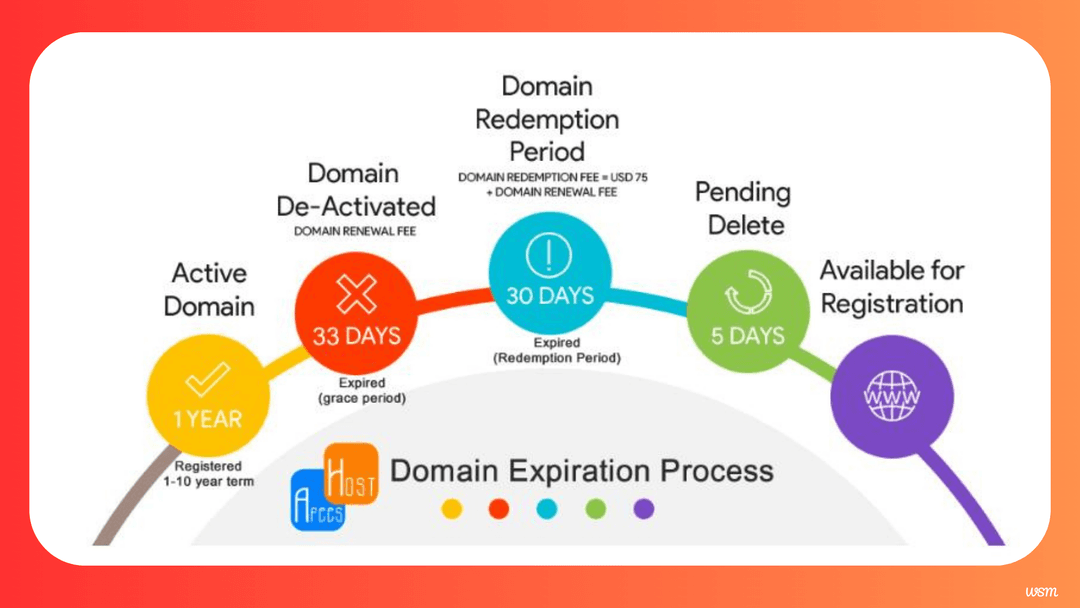
- The domain expires or enters a hold status mid-process.
- Email forwarding or URL forwarding provided by the old registrar stops working.
If you understand the separate roles of your registrar and your DNS host, the plan below follows naturally.
Step 1: Check Eligibility Before You Start
Before touching anything, confirm the domain can actually be transferred:
- Age and recent changes. Under ICANN's Transfer Policy, registrars may refuse transfers within 60 days of initial registration or a previous inter-registrar transfer, and a change of registrant can trigger a 60-day lock unless you opted out. See the 60-day domain transfer lock.
- Expiration date. Do not leave a transfer until the last few days before expiry. Transfers can take up to about a week, and an expired domain may be harder to move.
- Status codes. Look for
serverTransferProhibited,redemptionPeriod,pendingDelete, orclientHold, which need resolving first. - TLD support. Make sure the new registrar supports your TLD. Country-code TLDs often have their own process.
Check status and dates in one go with RDAP:
curl -sL https://rdap.org/domain/example.com \
  | jq '{status, events: [.events[] | {(.eventAction): .eventDate}] | add}'
You will see statuses like client transfer prohibited and events such as registration, expiration, and sometimes transfer.
Step 2: Find Out Where Your DNS Is Hosted
This is the step that prevents downtime. Look up your current name servers:
dig NS example.com +short
Then interpret the result:
| Name servers point to | What it means | Risk during transfer |
|---|---|---|
| A third-party DNS provider (Cloudflare, Route 53, etc.) | DNS is independent of the registrar | Low |
| Your web host | DNS is at the host, independent of the registrar | Low |
| The current registrar's name servers | DNS depends on the registrar you are leaving | High |
If your DNS is with a third party or your web host, you can transfer without touching DNS at all. If it is with the old registrar, move DNS first, as described in the next step.
Step 3: Move DNS Away From the Old Registrar (If Needed)
The safest pattern is to separate the two moves: migrate DNS hosting first, wait for it to settle, then transfer the registration. Never do both at the same time.
Copy Every Record
Most registrars let you export the zone as a file. If yours does not, list the records manually. Zone transfers (AXFR) are almost always refused on public name servers, so query the record types you use instead:
#!/usr/bin/env bash
# dump-records.sh - list common records for a domain from a specific name server
DOMAIN="${1:?usage: dump-records.sh domain nameserver}"
NS="${2:?usage: dump-records.sh domain nameserver}"
NAMES=("" "www" "mail" "autodiscover" "_dmarc" "default._domainkey" "selector1._domainkey" "selector2._domainkey")
TYPES=(A AAAA CNAME MX TXT CAA SRV)

for name in "${NAMES[@]}"; do
  fqdn="${name:+$name.}$DOMAIN"
  for type in "${TYPES[@]}"; do
    dig +noall +answer "@$NS" "$fqdn" "$type"
  done
done | sort -u
Run it against one of the current name servers, for example ./dump-records.sh example.com ns1.oldregistrar.com. Add any other subdomains you use; the script cannot discover names you do not list. Check your old registrar's dashboard as the final authority.
Recreate the Zone and Compare
Create the zone at the new DNS provider (this can be the new registrar's DNS, if you like) and add every record. Then run the same script against the new provider's name server and compare:
./dump-records.sh example.com ns1.oldregistrar.com > old.txt
./dump-records.sh example.com ns1.newdnshost.net > new.txt
diff <(awk '{print $1, $4, $5, $6, $7}' old.txt) <(awk '{print $1, $4, $5, $6, $7}' new.txt) \
  && echo "Zones match"
The awk step drops the TTL column so differences in TTL do not hide real mismatches.
Switch Name Servers and Wait
Update the name servers at the old registrar to point to the new DNS host. Because the NS records in the TLD zone typically carry a TTL of up to two days, keep the old zone intact for at least 48 hours, so resolvers with cached delegations still get correct answers. The full process is covered in how to plan a zero-downtime DNS migration.
Step 4: Handle DNSSEC
If DNSSEC is enabled, check for a DS record at the registry:
dig DS example.com +short
If that returns nothing, DNSSEC is not enabled and you can skip this step. If it returns a record, the rules are:
- DNS stays at the same third-party provider: the signing keys do not change, so the DS record stays valid. Most registrars carry the DS record across during a transfer, but confirm afterwards.
- DNS moves away from the old registrar: the old provider's keys will stop being used. Either disable DNSSEC (remove the DS record), wait for the DS TTL to expire, move DNS, then re-enable DNSSEC at the new provider; or use a provider that supports a key rollover with both keys published. Removing and re-adding is simpler for most people.
A DS record that does not match the zone's keys causes validating resolvers to return SERVFAIL, which looks like a complete outage for many users. Validate after any change:
dig example.com A +dnssec +multi | grep -E "flags:|RRSIG"
The ad flag in the header indicates the resolver validated the answer.
Step 5: Prepare the Domain at the Old Registrar
With DNS safely independent, prepare the domain for transfer:
- Confirm your contact email is current and verified. Transfer notices go to the registrant email.
- Turn off registrar lock. Remove
clientTransferProhibitedin the dashboard (it may be labeled domain lock, transfer lock, or theft protection). - Check privacy settings. Most registrars no longer require you to disable privacy for a transfer, but some old processes still do. Follow your registrar's instructions.
- Request the authorization code. This is the EPP code that proves you control the domain. Some registrars show it instantly; others email it. See what an EPP authorization code is and where to find it.
Verify the lock is gone before you start:
whois example.com | grep -i "domain status"
You want to see no clientTransferProhibited line (or an ok status). Lock changes typically show within minutes.
Step 6: Start the Transfer at the New Registrar
At the new registrar, choose "transfer a domain," enter the domain, and paste the authorization code. You usually pay for a year of registration as part of the transfer.
Pay attention to these options:
- Name servers. Some registrars offer to "use our name servers" during checkout. Decline, or choose "keep current name servers." This is the setting most likely to cause downtime if you click through too fast.
- DNS import. If the new registrar offers to import records, that is fine as long as you are not switching name servers at the same time.
- Privacy and auto-renew. Set them now so you do not forget.
Once submitted, the registry marks the domain pendingTransfer.
Step 7: Approve and Wait
The transfer completes in one of two ways:
- The losing registrar approves early. Many registrars email you a link to approve the outgoing transfer immediately. Clicking it can finish the transfer within minutes or hours.
- Automatic approval. If the losing registrar does nothing, the registry approves the transfer automatically after five days for gTLDs.
During this window, do not change name servers or contacts. Monitor the status:
watch -n 600 "curl -sL https://rdap.org/domain/example.com | jq -r '.status[]'"
Country-code TLDs can differ significantly. For example, .uk transfers use a registrar tag change rather than an auth code, and other ccTLDs have their own rules and timelines.
Step 8: Verify Everything After the Transfer
Once the status leaves pendingTransfer, run through this checklist:
# 1. New registrar is listed
curl -sL https://rdap.org/domain/example.com \
  | jq -r '.entities[] | select(.roles | index("registrar")) | .vcardArray[1][] | select(.[0]=="fn") | .[3]'

# 2. Name servers are unchanged
dig NS example.com +short

# 3. DS record still matches, if you use DNSSEC
dig DS example.com +short

# 4. Website and mail records resolve
dig A example.com +short
dig MX example.com +short

# 5. Site responds over HTTPS
curl -sI https://example.com | head -n 1
Then finish up at the new registrar:
- Re-enable registrar lock so the domain shows
clientTransferProhibitedagain. See what registrar lock is and why to enable it. - Turn on auto-renew and confirm the new expiration date (usually extended by one year).
- Enable two-factor authentication on the new registrar account.
- Recreate forwarding services that the old registrar provided, such as email forwarding or URL redirects.
- Keep the old DNS zone for a few days if you moved DNS, then delete it once traffic has fully shifted.
Common Downtime Traps
| Trap | How to avoid it |
|---|---|
| DNS hosted at the old registrar is deleted | Move DNS first and let it settle before transferring |
| New registrar resets name servers during checkout | Choose "keep existing name servers" |
| Stale DS record after moving DNS | Remove DS before the DNS move, re-add after |
| Domain expires mid-transfer | Start at least a couple of weeks before expiry |
| Old registrar's email forwarding stops | Set up forwarding or real mailboxes at the new provider in advance |
| Transfer emails go to an old address | Update and verify the registrant email first |
Domain Transfer FAQ
Not if your name servers stay the same and point to a working DNS host. The transfer only changes the sponsoring registrar. Downtime usually comes from DNS being hosted at the old registrar, name servers being reset, or a mismatched DNSSEC record.
For gTLDs, up to five days if the losing registrar does nothing, because the registry auto-approves after that. If you approve the outgoing transfer at the old registrar, it can complete within minutes or hours. Country-code TLDs vary.
Generally no. For most gTLDs, a transfer adds one year to the existing expiration date, so you keep the time you paid for. There is a 10-year maximum on total registration length, and some ccTLDs handle this differently.
No. Move DNS hosting first, wait at least 48 hours, confirm everything resolves, and then start the registrar transfer. Doing both at once makes problems hard to diagnose and roll back.
Usually not anymore. Since registrant emails are largely redacted, most registrars no longer require it. Follow your registrar's instructions, and make sure your account email is current, because that is where transfer notices go.
Often yes, but it is risky. Start well before expiry. Some registrars block transfers in the last days before expiration or after it, and if the domain enters redemption, you must restore it at the current registrar first.
Nothing, as long as your MX records stay on the same name servers. If your old registrar provided email forwarding, set up the replacement before the transfer, because that service ends when the domain leaves.
Conclusion
A registrar transfer changes who sponsors your domain, not where it points. Downtime comes from the things around it: DNS hosted at the losing registrar, name servers reset during checkout, DNSSEC records that no longer match, or a domain that expires mid-process. If you separate DNS hosting from the registration first, check DNSSEC, and keep your existing name servers, the transfer is invisible to visitors.
The sequence to remember is simple. Check eligibility, make DNS independent, handle DNSSEC, unlock and get the auth code, start the transfer while keeping the name servers, approve or wait five days, then verify and re-lock. Run the dig and RDAP checks at each step, and you will know before your users do if something is wrong.
Here are some useful references for going deeper on domain transfers:
- ICANN: Transfer Policy — the rules for inter-registrar transfers, auth codes, and denial reasons.
- ICANN: EPP Status Codes: What Do They Mean, and Why Should I Know? — explains the statuses you check during a transfer.
- RFC Editor: RFC 5731: EPP Domain Name Mapping — defines the transfer command and the
pendingTransferstatus. - RFC Editor: RFC 4035: Protocol Modifications for the DNS Security Extensions — how validating resolvers use DS records, and why a mismatch causes failures.